How to Navigate to Users Tab
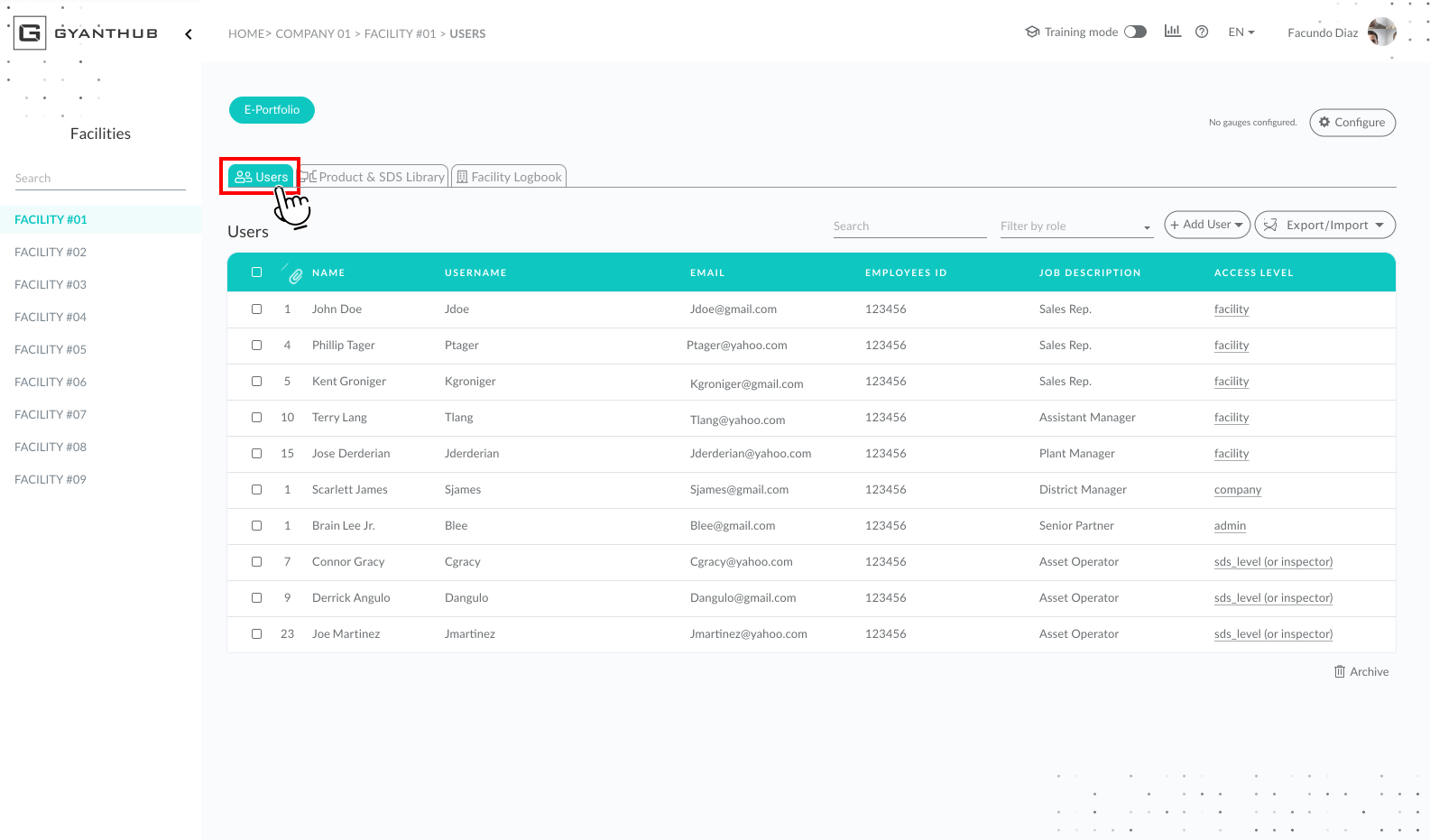
For users with Single facility access:
1. Click on ‘Users’ module.
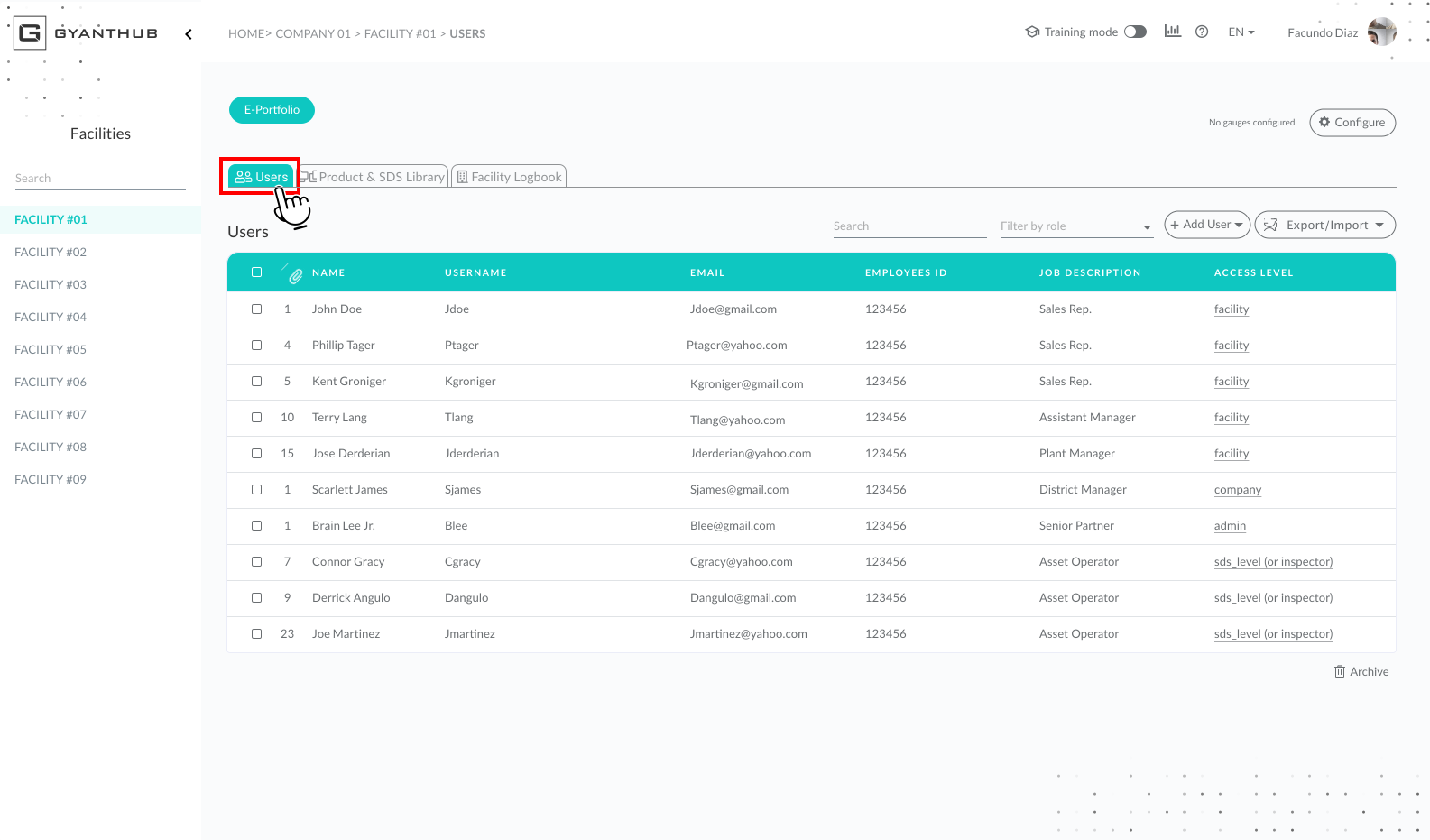
For users with multiple facility access:
1. You will be navigated to your facility access list, search and click on a facility.
2. Click on ‘Users’ module.
How to Configure User Notifications
Login to Gyanthub
1. Enter facility directory
2. Select the "Users" module tab.
3. Search and Select desired user.
4. Click the edit button above the User Notifications section.
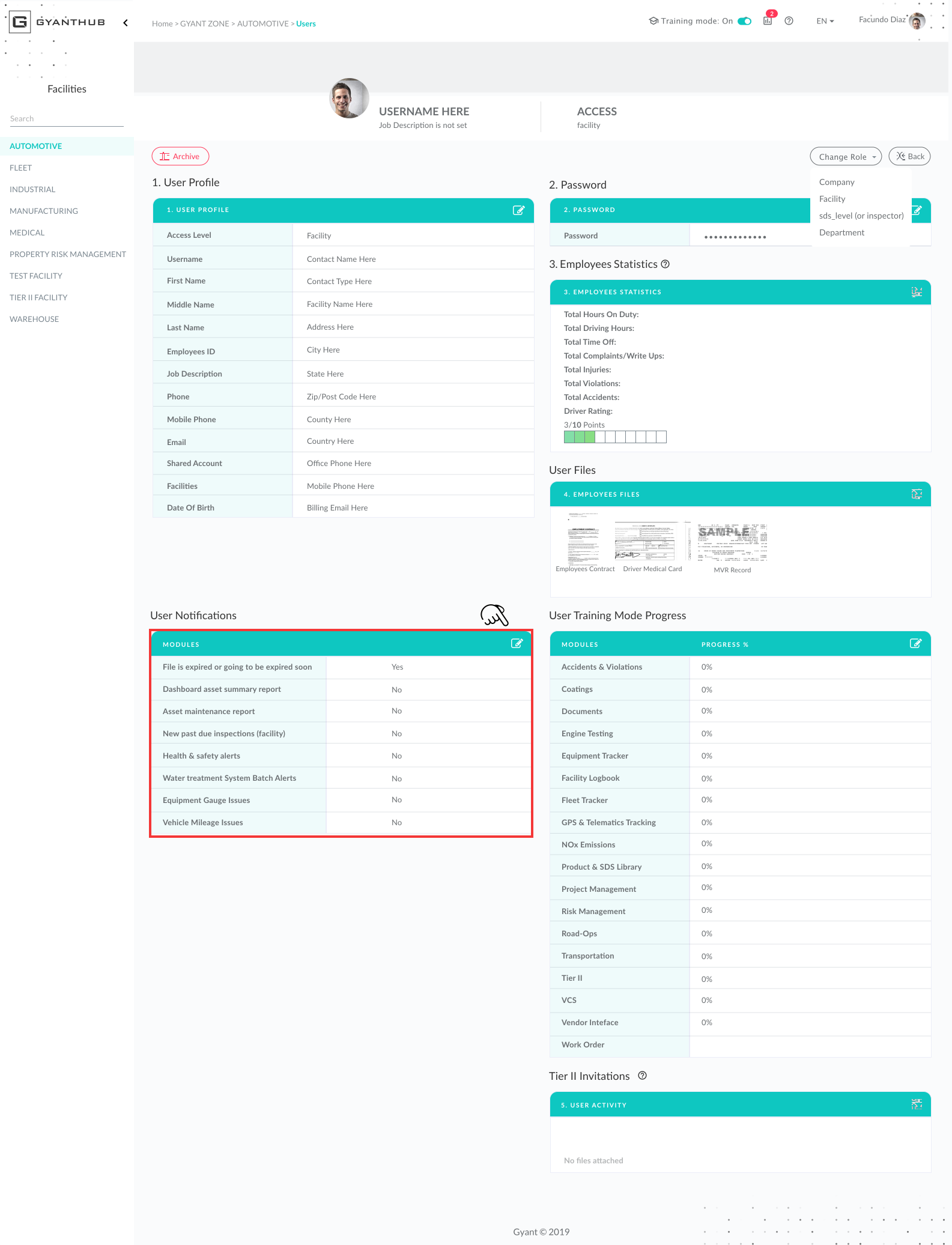
5. Tick off which notifications the user requires or no longer needs. Click Save.
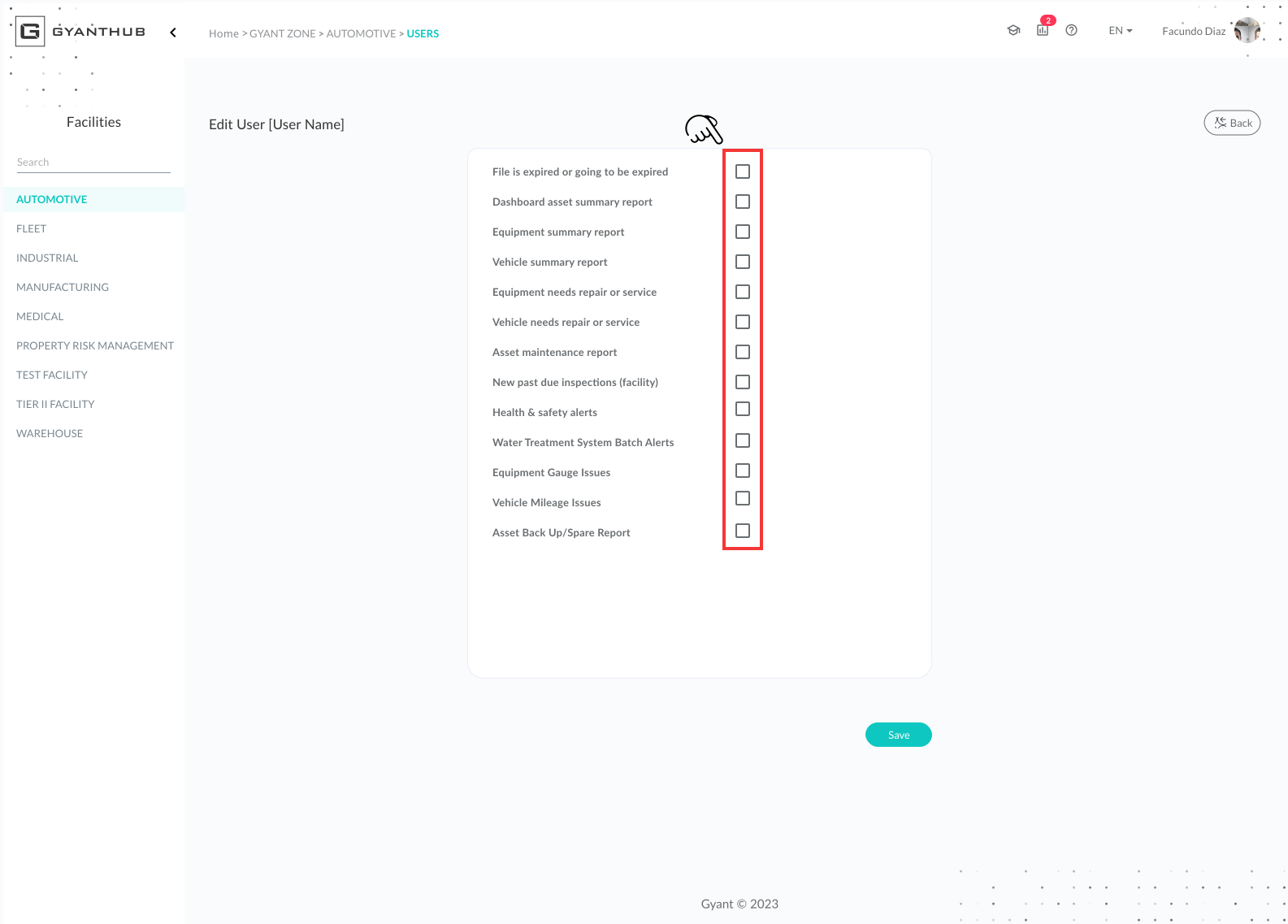
Below is an explanation of all Notifications and their Descriptions
| Notification | Description |
|---|---|
| File is expired or going to be expired soon | Notification alerting when a file will expire in the documents module. |
| Equipment summary report | This is a overview of all equipment and their inspections in a simple csv format. |
| Vehicle summary report | This is a overview of all vehicles and their inspections in a simple csv format. |
| Equipment needs repair or service | User will receive a notification when a equipment asset requires immediate service or repairs. |
| Vehicle needs repair or service | User will receive a notification when a vehicle requires immediate service or repairs. |
| Asset maintenance report | User will receive a daily forecast report on daily maintenance. |
| New past due inspections (facility) | User will receive a notification when a facility has new past due inspections. |
| Health & safety alerts | User will receive an email notification when a H&S service/emergency is requested. |
| Water Treatment System Batch Alerts | Alerts related to Batch Waste Water equipment |
| Equipment Gauge Issues | Users will receive a notification when there are equipment gauge reading issues that need to be corrected. |
| Vehicle Mileage Issues | Users will receive a notification when there are vehicle mileage issues that need to be corrected. |
| Asset Back Up/Spare Report | User will receive notification with a report of all assets marked as backup/spare including days of inspection inactivity. |
How to Update User Access Roles
Changing a User Access role from Dashboard
- Select the Dashboard tab.
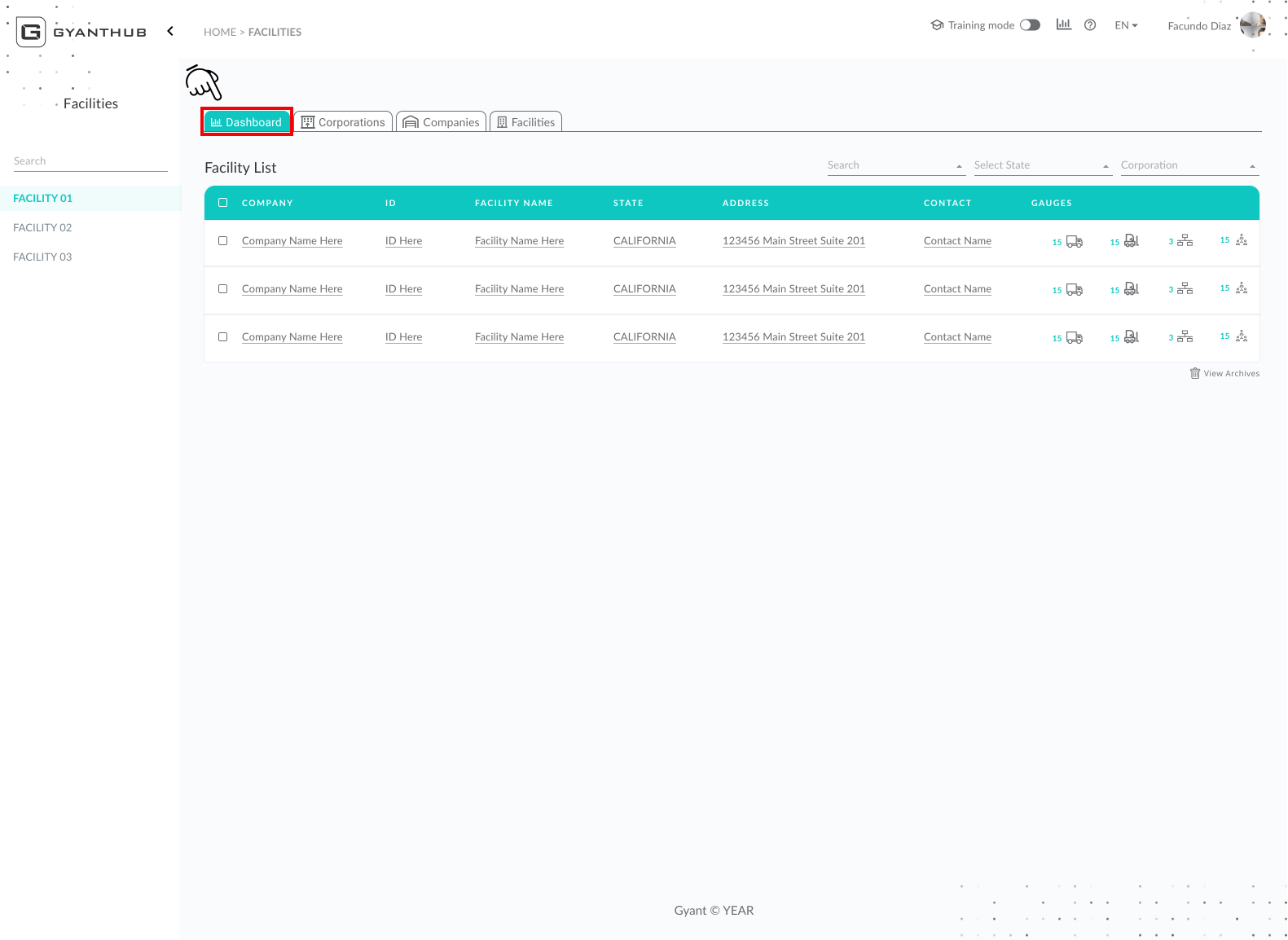
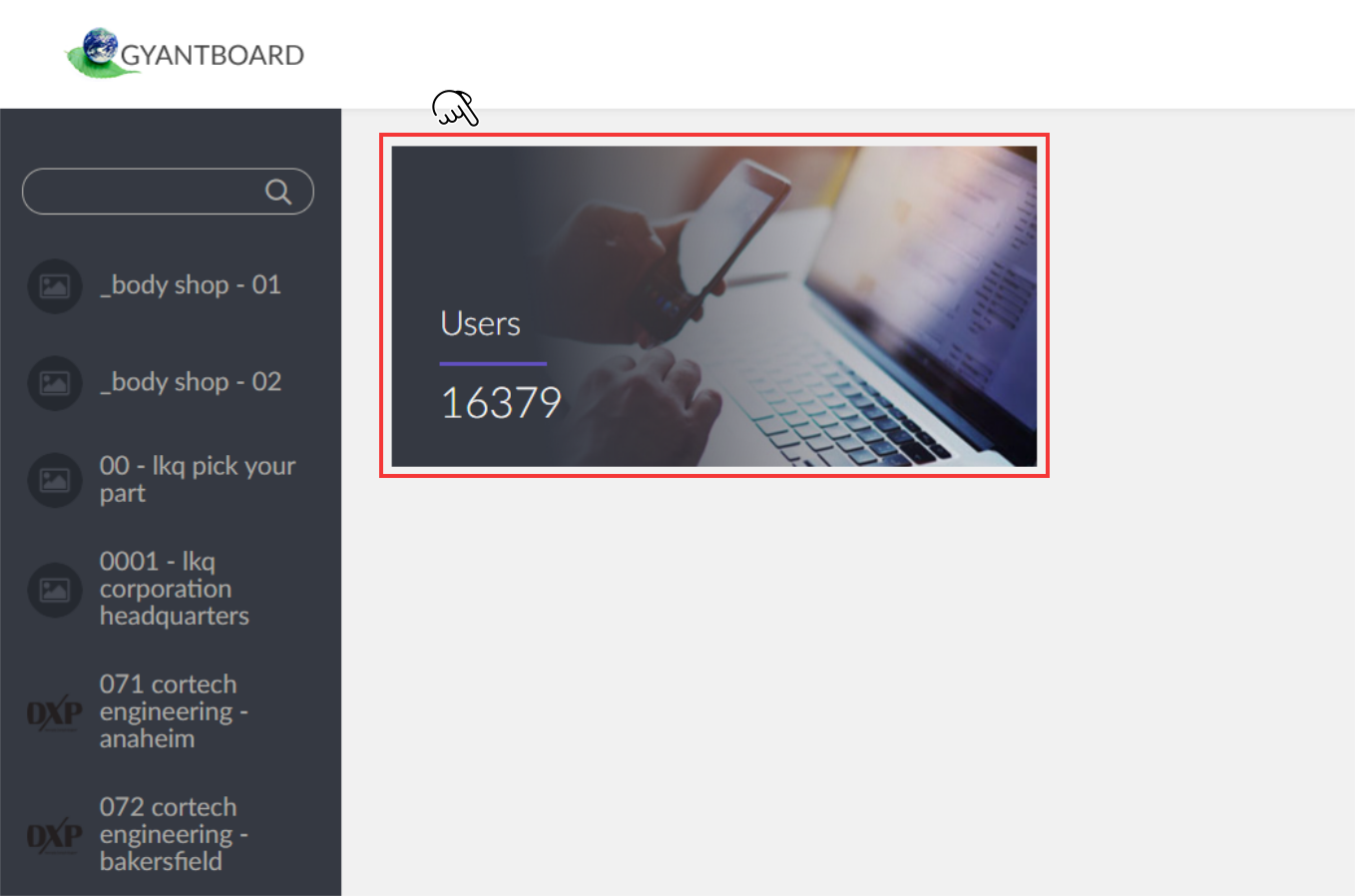
2. Click on Users.
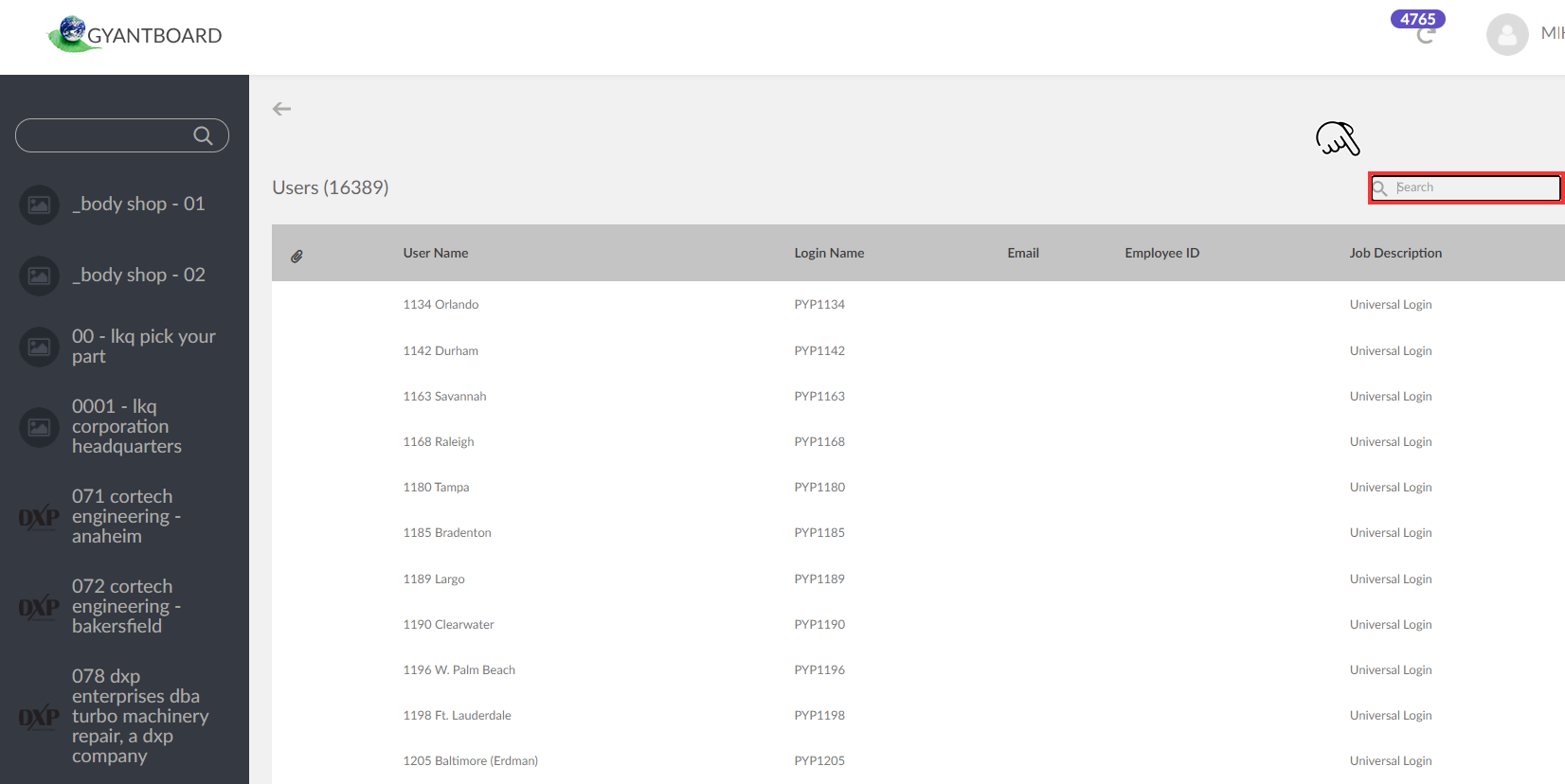
3. Search and select a User.
4. Click Change Role and select a role from the drop down.
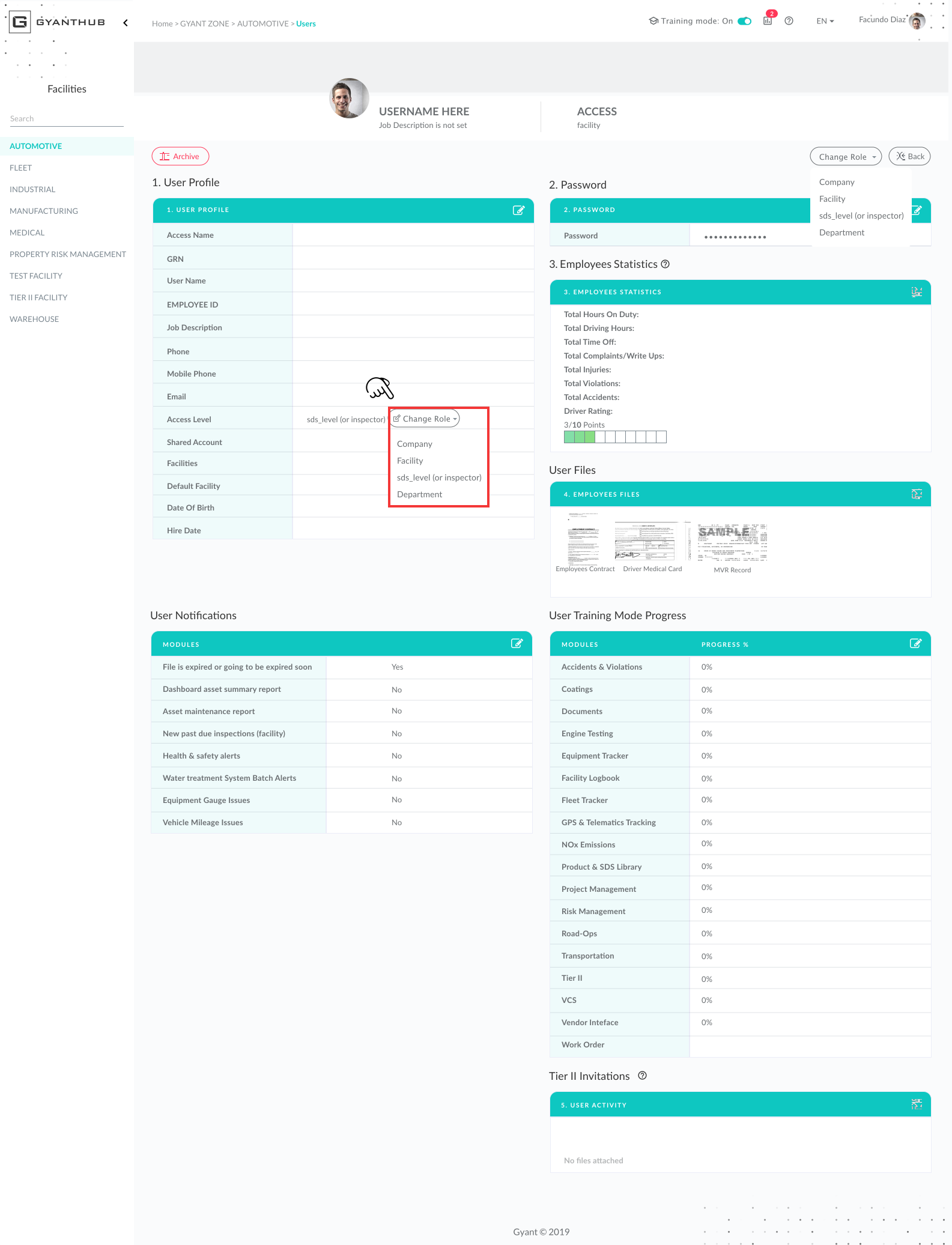
5. Ensure all required fields are filled out and accurate then click Save.
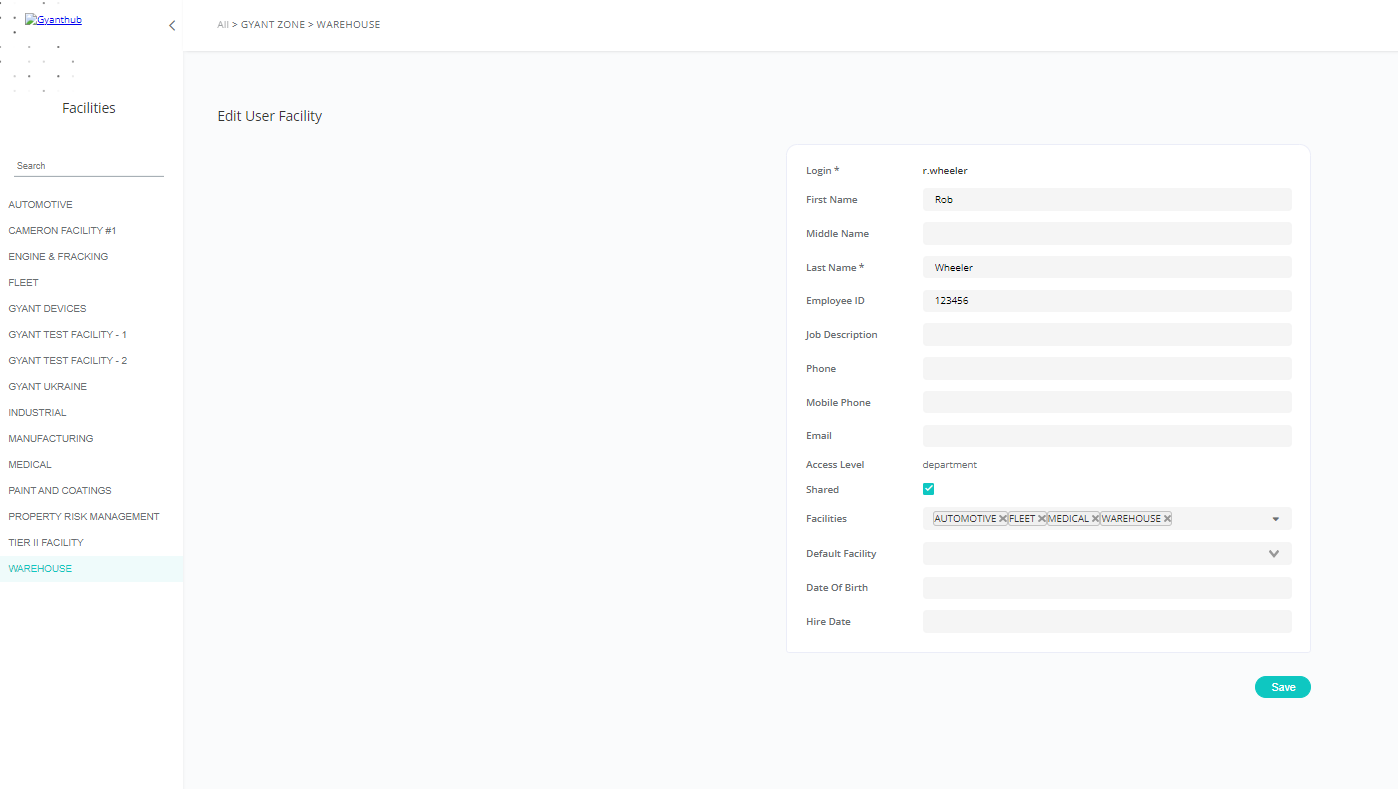
Changing a User Access role from Facility Directory
1. Click the Users tab within the facility directory.
2. Select a User.
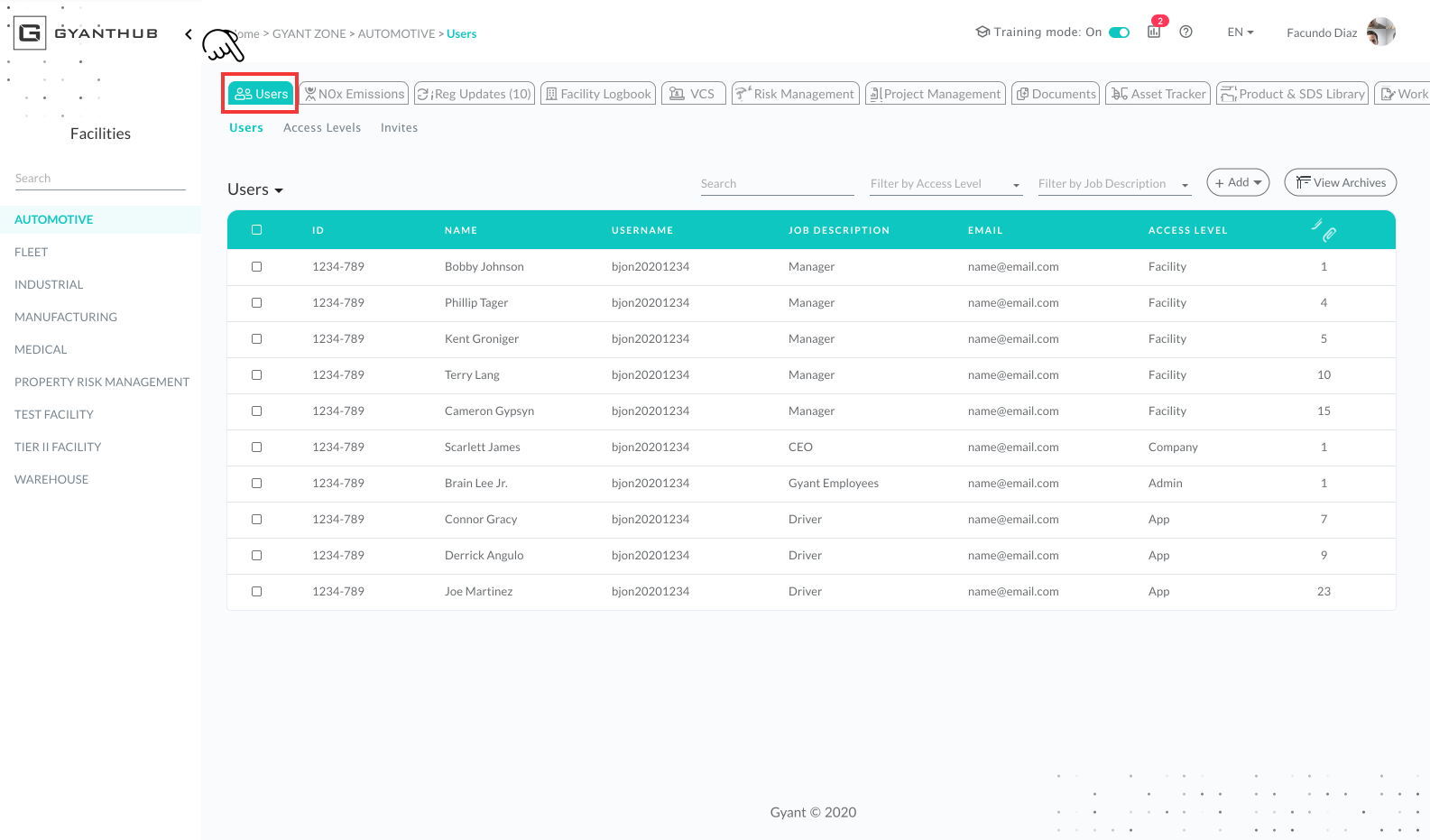
3. Click Change Role and select a role from the drop down.
4. Ensure all required fields are filled out and accurate then click Save.
How to Add Users (Individually)
Note: Before following the steps below, please review 'Gyant User Access Level Guidelines'.
1.Go to a Facility
2.Click on 'Users' module.
3.Click 'Add' dropdown, then select a user type.
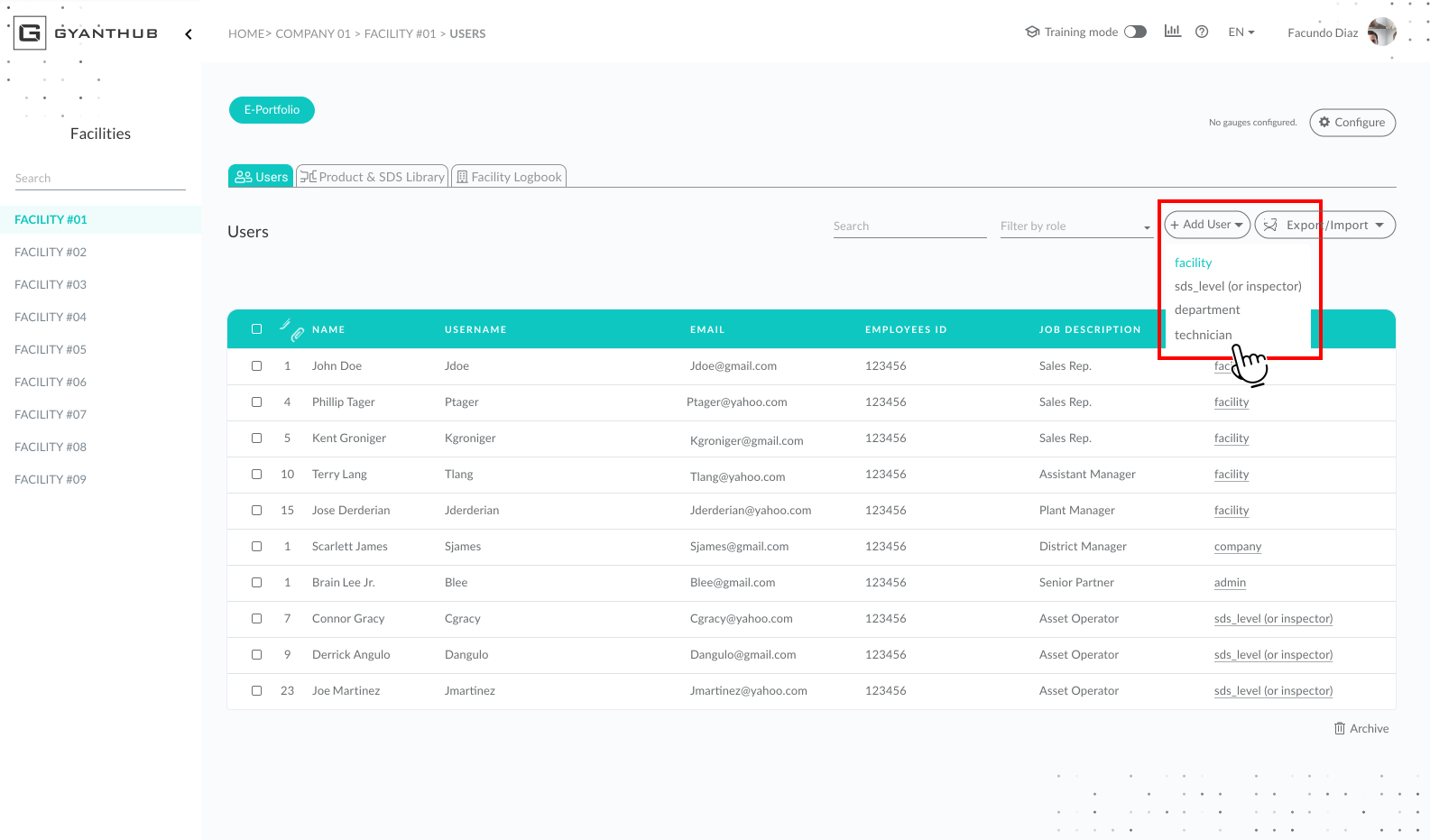
4.Fill out all the required fields with "*".
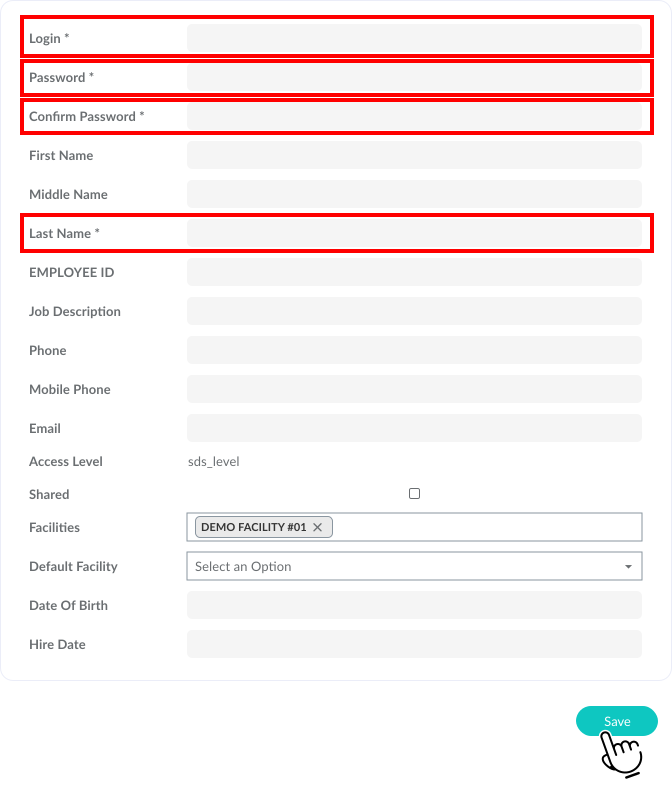
5. Click 'Save'.
How to Add Users (Bulk)
Note: Before following the steps below, please review 'Gyant User Access Level Guidelines'.
1. Click on 'Users' module.
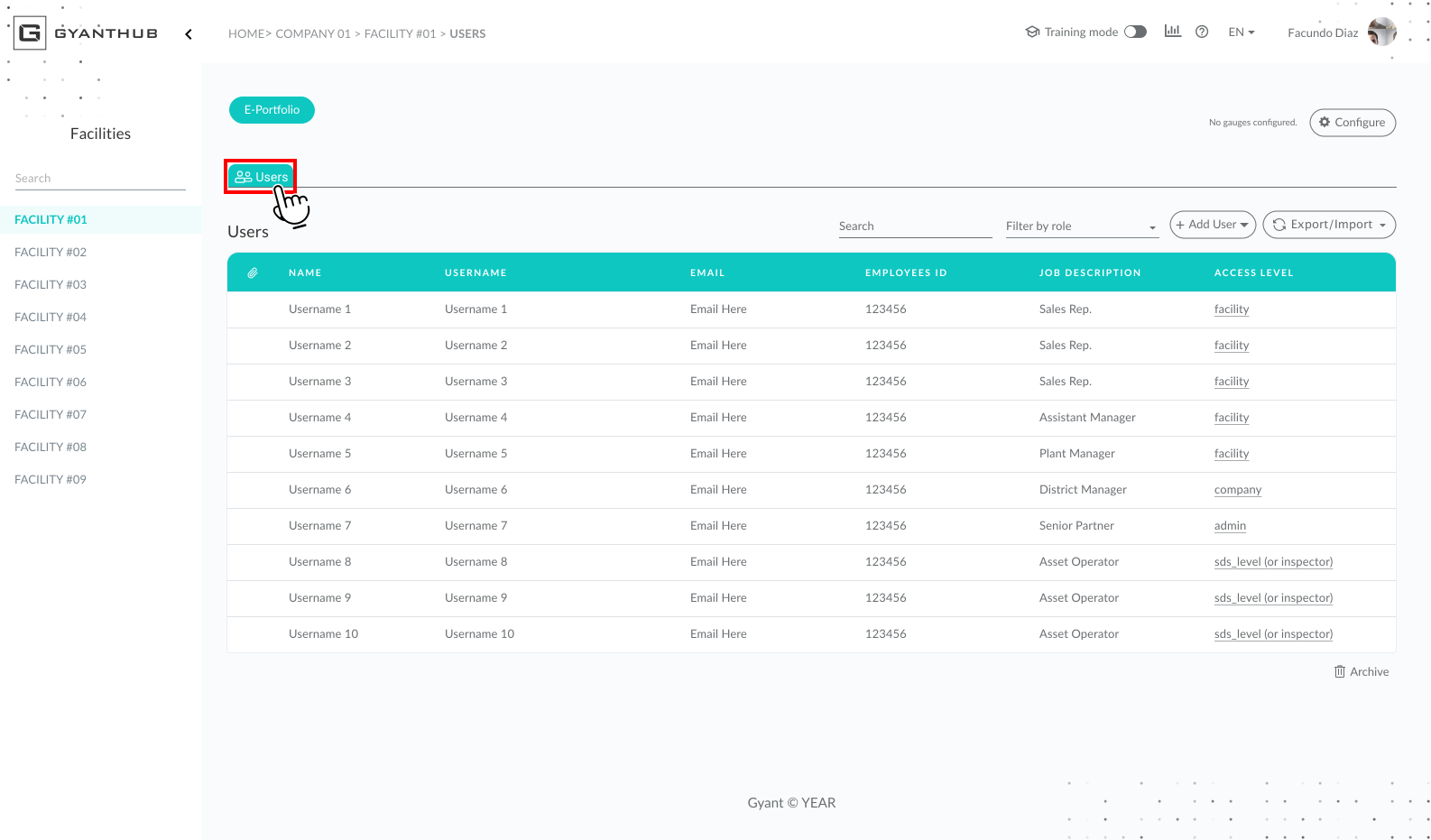
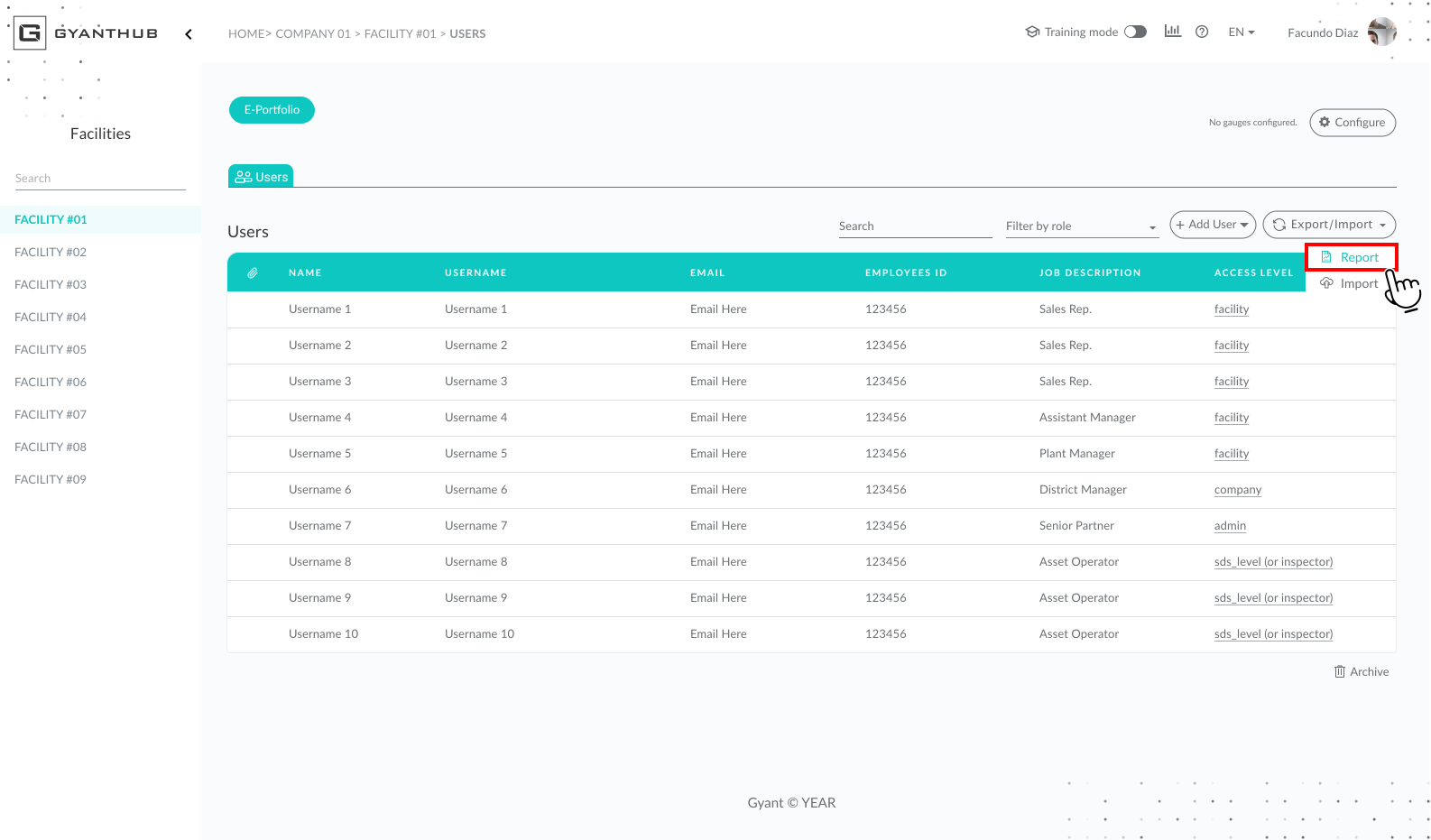
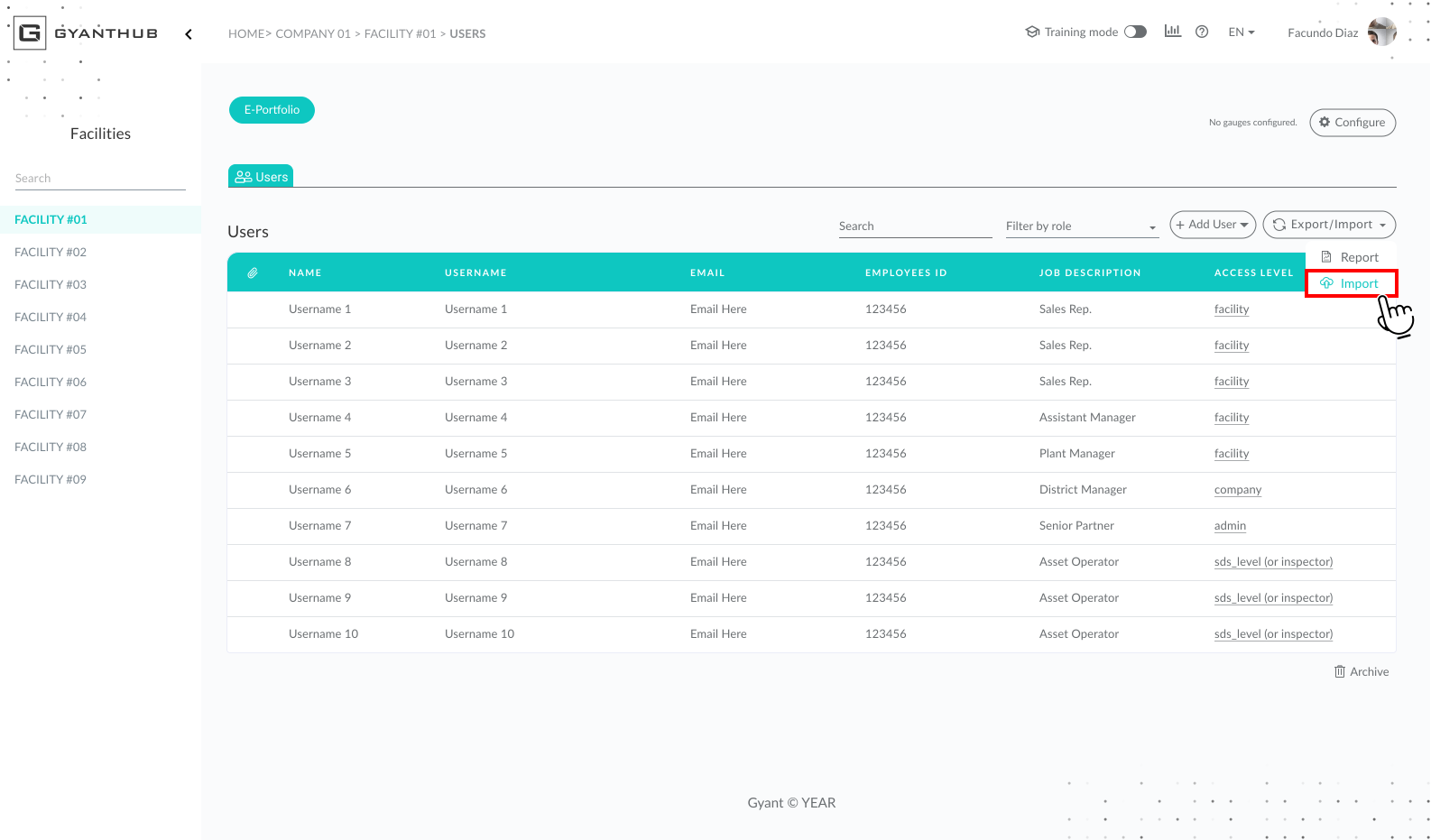
2. Click 'Export/Import' dropdown, then click 'Report'
3. A Excel Spreadsheet will download, Open Spreadsheet view the following below for Guidance:
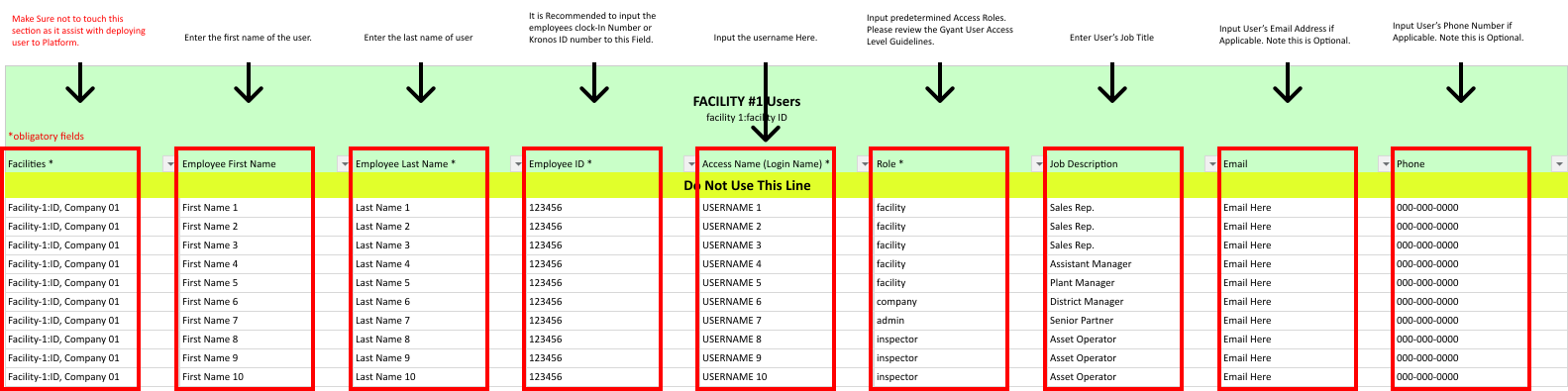
4. Once Excel Spreadsheet is complete save file to your computer.
5. Go back to Users tab on Gyanthub, the click 'Export/Import' Dropdown, Then click 'Import'.
How to Add a Shared User Account
Overview
Shared user accounts are added when there are limited devices for employees to use at a facility. By creating a shared account, this allows user to use a universal account where app users will verify their identity by inputting either a employee ID (Kronos ID) or Unique PIN number in order to perform inspections, add assets etc. This also assist in avoiding user having to be forced to login/log out during a busy shift.
1. Go to Facility main page.
2. Click 'Users' module, then click 'Add' dropdown button.
3. Click 'Add' dropdown button, then click 'sds_level'.
4. Add all required fields, then click 'Shared' tick box to make user account a shared account.
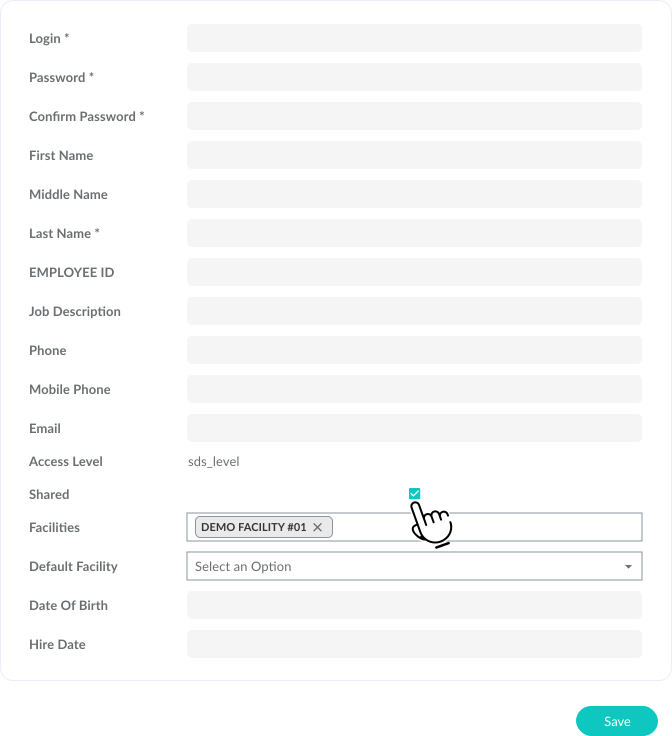
Note: When adding a shared account be sure to check that all active Gyant users have a Employees ID setup.
5. Click 'Save'.
How to Archive/Restore Users
How to Archive Users:
1. Go to Facility main page.
2. Click 'Users' module.
3. Select a user within the list.
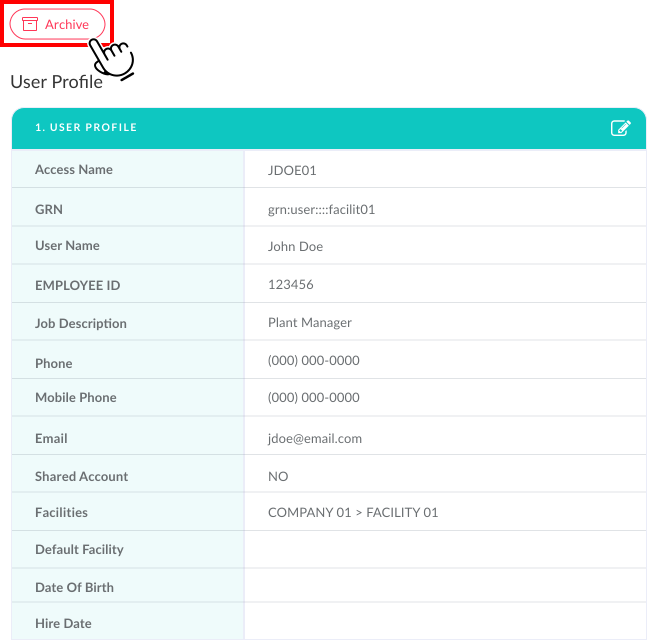
4. Click 'Archive' located on the left side above user profile window.
How to Restore Users
1. Go to Facility main page.
2. Click 'Users' module, then scroll down to bottom of page and click 'Archives'.
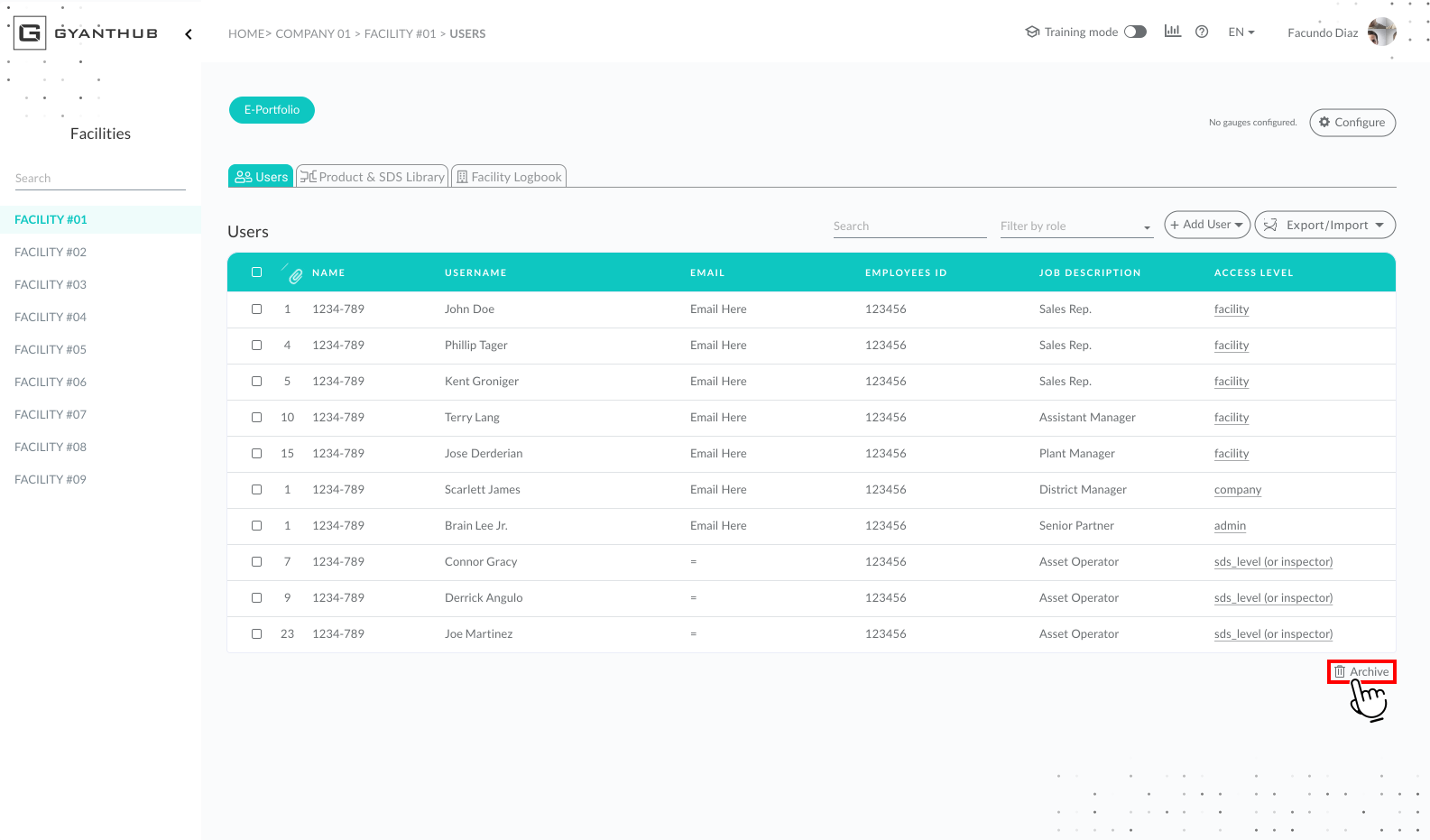
3. Select a user within the archives list.
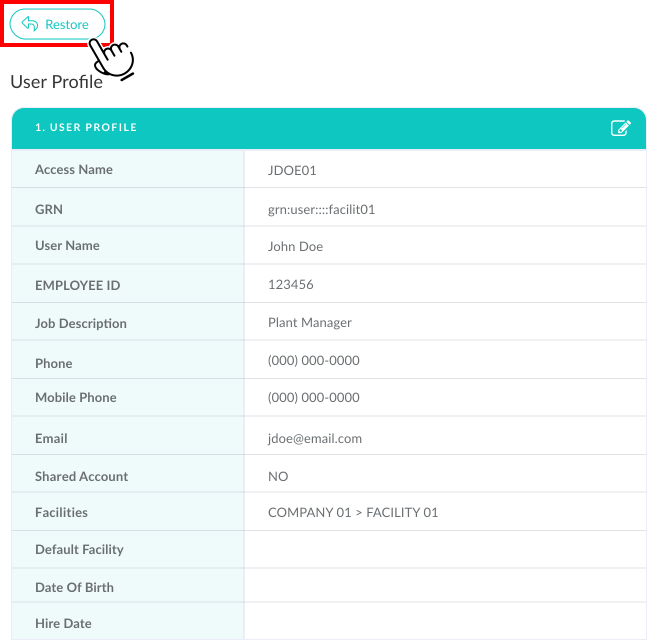
4. Click 'Restore' located on the left side above user profile window.